Move IDM to a new PC with your categories and folders intact
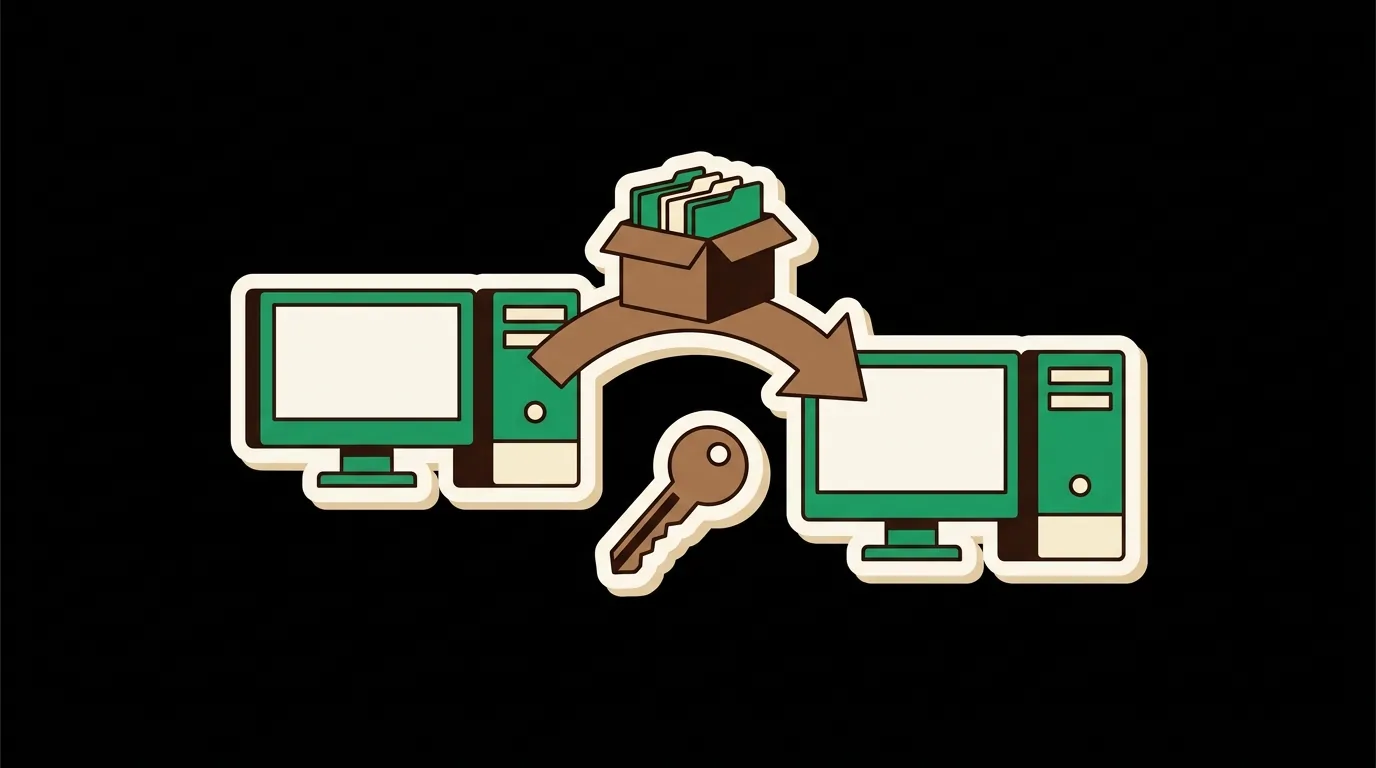
To move IDM to a new PC, export HKCU\Software\DownloadManager, quit IDM on the new machine, import the file, and put your folders back at the same paths.
Internet Download Manager (IDM) keeps its settings, its categories and its download list in one registry key, HKEY_CURRENT_USER\Software\DownloadManager. To move IDM to a new PC, export that key on the old machine, copy IDM's temporary folder and every category folder across, quit IDM on the new machine, import the key, and start IDM again. If the new PC has different drive letters, the category folders need repointing afterwards, and that is the step most guides leave out.
This post walks through each step with the exact commands, what the key does and does not carry, and what to do when D: is no longer D:. If you use IDM Download Router, the studio's free tool for editing IDM's folders and categories on one screen, it has a settings file of its own to bring along, covered at the end. It also happens to be the quickest way to repoint every category at once.
What the key holds, and what it does not
IDM's own FAQ, I plan to reinstall my system or change computer and want to transfer my current IDM settings, names the key to save: "Export "HKEY_CURRENT_USER\Software\DownloadManager" registry key and also save it." The router reads and writes the same key, and its source names the values it touches there:
LocalPathW, the main download folder.FoldersTree\<Name>, one subkey per category, each with its extension list (mask) and its folder (pathW). The README lists all six values a category carries.TempPath, the temporary directory where IDM keeps the parts of unfinished downloads.Extensions, the global list of file types IDM catches.ExePath, whereIDMan.exewas installed.- Switches such as
MonitorUrlClipboard,LaunchOnStartandRememberLastSave.
The same FAQ says that once the key and the folders are restored, "You should see a list of your downloads and be able to resume unfinished downloads", so the download list travels with it too.
What the key does not carry:
- The files. Completed downloads sit in the category folders, and partial ones in the temporary directory. The registry only records where they are.
- IDM Download Router's settings, which live in a JSON file under
%APPDATA%. - IDM's registration. That is handled by IDM. This post covers folders and categories only.
On the old PC

Write down the folders
IDM's FAQ starts here. Open Options, then Save To ("Options→Downloads" in older versions), note the path in the "Temporary directory" field, then pick each category in the "Category" list and note its folder. The FAQ adds: "Please note that by default "AppData" folder ... is hidden." If a path runs through AppData, turn on hidden items in File Explorer to reach it.
You can also read all of it in one go. The category folders and the main folder are stored as raw UTF-16 bytes rather than text (pathW is REG_NONE, LocalPathW is REG_BINARY, per apply_changes()), and Microsoft's registry reference notes that Registry Editor displays both types in hexadecimal. PowerShell can turn the bytes back into paths, which is all this read-only snippet does:
$root = 'HKCU:\Software\DownloadManager'
$utf16 = [Text.Encoding]::Unicode
$idm = Get-ItemProperty $root
'Main folder:  ' + $utf16.GetString($idm.LocalPathW).TrimEnd([char]0)
'Temp folder:  ' + $idm.TempPath
Get-ChildItem "$root\FoldersTree" | ForEach-Object {
  $path = (Get-ItemProperty $_.PSPath).pathW
  if ($path) { '{0}: {1}' -f $_.PSChildName, $utf16.GetString($path).TrimEnd([char]0) }
}
Keep the output. You will want it on the new PC, especially if the drives are laid out differently.
Export the key
Microsoft documents reg export as reg export <keyname> <filename> [/y]. The key name must start with a valid root key such as HKCU, it goes in quotes if it contains a space, and the file "must have a .reg extension". /y overwrites an existing file of that name without asking:
reg export "HKCU\Software\DownloadManager" idm-settings.reg /yRun it as the Windows user who uses IDM. HKEY_CURRENT_USER, in Microsoft's words, "Contains the root of the configuration information for the user who is currently logged on", so a different account exports a different key, or none.
It is worth quitting IDM before you export, too, so the file reflects what IDM has in memory rather than what it last wrote. The section on importing below explains why the two can differ.
Copy the folders
Copy the temporary directory and every category folder to the external drive or network share you are using for the move. The FAQ's instruction for the other end is to copy them back "under same paths that they had on initial system". Unfinished downloads depend on the temporary directory in particular, because that is where their parts are.
If you use the router, copy %APPDATA%\IDM Folders Changer\config.json as well. Paste that path into File Explorer's address bar to open the folder.
On the new PC

Install IDM, then quit it completely
Install IDM, then make sure it is not running before you import. That is not a formality. The router's source records what happens otherwise: "IDM caches categories in memory and rewrites the registry on exit, which would undo deletions and additions" (lines 1159–1168). Import while IDM is open, and the copy it holds in memory can be written back over your import the next time it exits. Sorting IDM downloads by file type covers the same behaviour for hand edits.
Closing the main window is not enough if IDM sits in the system tray. Exit it from the tray icon, then check that the process is gone. This is the same check the router uses before restarting IDM (source):
tasklist /FI "IMAGENAME eq IDMan.exe"If it prints a line for IDMan.exe, IDM is still running.
Import the key
reg import takes one argument, a file "created in advance by using reg export". Run it as the same user who will use IDM:
reg import idm-settings.regBoth commands return 0 on success and 1 on failure, per Microsoft's pages. To confirm the categories arrived, list them with reg query, whose /s switch queries "all subkeys and value names recursively":
reg query "HKCU\Software\DownloadManager\FoldersTree" /sThe masks come back as readable text and the folders as hex. The PowerShell snippet from the old PC works here too, and its output should match what you saved.
Put the folders back
Copy the temporary directory and the category folders to the same paths they had. Then start IDM. If the paths match, the FAQ's promise holds: "IDM will use your old settings."
When the drive letters are different
This is where moves go wrong. Your categories pointed at D:\Downloads\Video, and the new PC has one disk and no D: at all, or gave the second disk E:. The imported paths still say D:.

Editing the .reg file before importing is not a practical fix. The folder paths are bytes, not text, so a find-and-replace for D:\ will not find them. That leaves three honest options.
Give the drive its old letter
If the new PC has a second drive, you can assign it the letter the old one had. Microsoft's Change a Drive Letter steps: open Disk Management with administrator permissions, right-click the volume, select "Change Drive Letter and Paths", then "Change", and choose the letter. Microsoft's caution applies: "If you change the drive letter of a drive that contains Windows or apps, the apps might have trouble running or finding the drive." On a data-only drive this is the cleanest answer, because every path in the import becomes true at once, the temporary directory included.
Repoint each category in IDM
Otherwise, open Options, then Save To, and set a new folder for each category in turn, plus the temporary directory. It is the same dialog the FAQ sends you to on the old PC, and the same one-category-at-a-time routine.
Repoint all of them at once
From the studio: IDM Download Router reads the imported categories, shows each one's current folder beside the folder it will get, and rewrites every category path from a single main folder when you press Apply, so a drive change is one field and one button.
Know what Apply does before you use it. It sets the main folder and writes each category's folder as a subfolder of it named after the category, so with E:\Downloads as the main folder, Video goes to E:\Downloads\Video (source). If a category on the old PC lived somewhere else entirely, set that one in IDM's own dialog afterwards. The temporary directory has its own field in the router's side panel and is written only if you change it.
Whichever route you take, move the folder contents to match. A category that now points at E:\Downloads\Video will not see files still sitting in a copied D: tree, and an unfinished download can only resume if its parts are in the temporary directory IDM now uses.
Bringing IDM Download Router's settings along
The router keeps its own settings in %APPDATA%\IDM Folders Changer\config.json. The folder still carries the project's earlier name. Per its Config class, the file holds:
categories, the router's working list of category names.presets, your saved main-folder choices. The defaults areD:\Download,D:\Downloads,D:\IDM Downloadsand your userDownloadsfolder.last_folder, the main folder you last applied.idm_exe, the path toIDMan.exeit uses to restart IDM.create_subfoldersandrestart_idm, the two checkboxes under defaults.
Two details matter on a new machine. First, close the router before copying the file in: it saves config.json when it exits (source), which would overwrite your copy. Second, the paths in it are plain JSON text, so unlike the registry they can be edited before you start. The main-folder field opens on last_folder (line 706). If that drive no longer exists, change the field before you press Apply. If IDM is installed in a different place, use the "detect" button next to the IDM executable field.
The file is optional. The router reads every category under FoldersTree when it starts, including ones it never created (source), so after the registry import your categories appear either way. What you lose without config.json is the preset list and the defaults.
The short version
On the old PC: note the folders, quit IDM, run reg export, and copy the temporary directory, the category folders and, if you use it, the router's config.json. On the new PC: install IDM, quit it, confirm IDMan.exe is gone, run reg import, put the folders back at the same paths, and start IDM. If a drive letter changed, give the drive its old letter, or repoint the categories before you start downloading again.
Keep the .reg file once the move is done. It is also the backup to restore from the next time a category change goes wrong.
One screen for IDM's folders and categories
Puts every Internet Download Manager folder and category on one screen — reviewed as a set, applied in one action instead of nine dialogs.
MITWindows 10 / 11